The Foundry Katana
2026-10-29
软件下载
安全检测通过
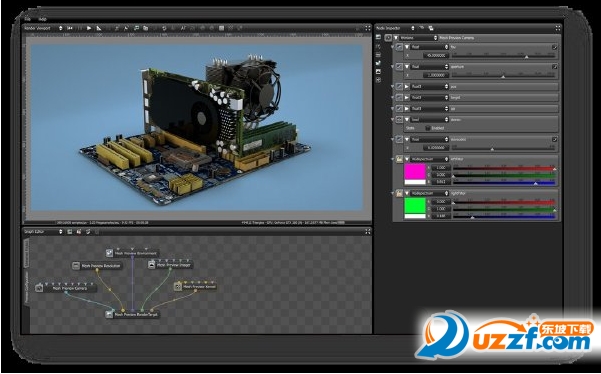
Foundry打造的一款非常专业的3d渲染工具,The Foundry Katana通过效果研发和打灯光制作来避免具体的镜头变化,制作流程简单,是目前非常先进打光工具,可以满足现代生产的需要。
1.使用KATANA首先需要安装LINUX系统,LZ折腾了几天从零基础安装上了LINUX,然后弄了双系统,下面慢慢说。。。
Linux和WIN的分区是不一样的,所以安装之前要备份好你电脑里所有东西,最好去买2个光盘,这是最方便的方法,从硬盘安装相比较比较麻烦一些。
Linux版本有Ubuntu、Opensuse、Red Hat Linux等等,Ubuntu版本使用起来装应用比较容易。LZ用的是OPENSUSE版本的,其他的版本有的难装有的相比更容易,不过我没弄过。
如果使用单系统 进了系统按F2或者ESC(这个跟电脑有关系),然后F9 选CD/ROM直接按步骤来就行了。
双系统需要先安装WIN7 在安装WIN7的步骤中 分区的时候全删掉,重新分,在分主分区的时候会出现8mb的额外空间,这个一定要删掉,不然会对接下来的LINUX安装造成影响,相关步骤百度上很多(其实是LZ忘了在哪了)。
分区要留出 50G以上的空间 给LINUX使用,这50G不要动,就是显示为未分配。
装完WIN7之后就可以继续装LINUX了,方法类似,重启ESC使用CDROM启动,在选择分区的时候取消独立为LINUX分区,然后点编辑分区,刷新,点开硬盘,新建一个swap和/区即可搜 win7和opensuse双系统的安装 可以找到相关的很多东西。
之后重启电脑就可以看到引导界面有WIN7和LINUX了
官方文档
InstallKatana The current version of Katana can be obtained from our website: http://www.thefoundry.co.uk/products/katana/downloads
Once you have downloaded the tarball,follow the installation instructions below:
1. Move the tarball into atemporary folder.
2. Extract and decompress thetarball inside the temporary folder.
tar xvf Katana<version>-linux-x86-release-64.tgz
3. Start the install script:
./install.sh
4. After reading the End UserLicense Agreement (EULA), if you agree with it, type: yes
5. Enter the installationdirectory for Katana.
TIP: You can also use the --path option which assumes you have read, and agree with, the EULA. For instance, to use the --path option to install Katana to the /opt/foundry/katana directory, execute the install script with:./install.sh --path /opt/foundry/katana
Launching Katana To start Katana in the default, Interactive mode:1. Open a terminal.
2. Navigate to the directory whereyou installed Katana.
3. Enter:
./katana
If a license is present, the interfacedisplays. Otherwise, you need to license Katana. See LicensingKatana.
You can alsospecify a Katana scene to load. To start in Interactive mode, and open aspecified Katana scene:
1. Open a terminal.
2. Navigate to the directory whereyou installed Katana.
3. Enter:
./katana/yourDirectory/yourScene.katana
You can also startKatana in a number of different modes:
• Interactive mode is the defaultmode. It requires no additional command line arguments, and as the only launchmode that starts Katana with the GUI.
• Batch mode opens a Katana scenefor render farm rendering.
• Shell mode exposes Katana’sPython interpreter in the terminal shell.
• Script mode runs a specifiedPython script in Katana’s Python interpreter.
For information onstarting Katana in the other launch modes, see the Launch Modes chapter in theTechnical Guide.
在官网点右侧的Product downloads

官网的最上面的support这里可以下载各种文档,技术指南等,下载后按指南操作即可。
1、速度
成果立即展现,降低修改的需求,省时又省钱。告别以往绘制、渲染、审查、修改的循环程序。一个模型的所有纹理皆能同时载入 MARI,省去分割模型的麻烦。
2、绘制
首屈一指的创意绘图工具,专注于艺术家们的需求。MARI经过极度生产压力历练而生的绘笔引擎,将艺术家从传统的限制中解放出来,容许他们自然的在模型上作业。
3、境内效果
就视觉特效工作而言,镜头内的整合效果才是最重要的。一个镜头中的模型在背景前,从任何角度所呈现的效果都非常重要。MARI允许艺术家在镜头内检视效果,并可直接在模型上绘制适当的纹理。
4、纹理变化
纹理在不同的时间点可能需要改变,例如脸红的少女、刮伤凹陷的盔甲等,纹理的变化是做真实效果时很重要的一环。在 MARI 里您能逐格绘制纹理。
1、是一种用来渲染3D数据的环境,允许艺术家去自定义和控制外观、灯光,同时保持性能,即使在处理大的数据集。通过使用基于规则的方法,它的操作并不具有破坏性,因此可以让建模、外观开发、动画和灯光团队并行工作。
2、最初是在索尼图形图像开发,用以处理日益复杂的工作流程,早在制作《贝奥武夫》和《冲浪企鹅》时已经被投入使用。
3、TheFoundry的不断努力,以及和广泛用户的协商,都确保了KATANA是一个十分灵活的产品,并能够最终集成任何的工作流程和任何渲染器。